Tampilkan postingan dengan label blogger posts. Tampilkan semua postingan

Rabu, 11 Maret 2015

Building a List/Grid View Switcher in Blogger with Auto Read More

A list of posts in grid or list view provides a more defined canvas with which a blogger or website owner can use as a guide in creating content. This concept has extended to visitors, where they can have control on whether or not they wish to view posts in list or grid view. While custom modification codes are shared by some blogging sites, others are not. Some that are shared, however, can be complex even to bloggers themselves, such as JQuery.

The good news is there are lightweight codes available, including the Auto Read More in Blogger. Through it, a blogger can add two buttons that will enable visitors to switch between grid view and list view, depending on what they prefer. These buttons, however, are only visible on limited pages - homepage, label page and archive page. Nonetheless, it is better than not having this particular feature at all.

Unlike JQuery, the Auto Read More uses HTML, CSS and JavaScript. To view posts in a list view, two sets of CSS codes are added as one. Another set is added to view posts in grid view. Other combination of codes is used to enable easy switch between views, particularly at a click of a button.


How to Add a List/Grid View Switcher in Blogger

Step 1. Log into your Blogger dashboard and select your blog, then go to "Template" > press the "Edit HTML" button.

Step 2. Click anywhere inside the code area and press the CTRL + F keys to open the search box. Type this tag below inside the box and hit Enter to find it:
</head>
Step 3. Just above the </head> tag, copy and paste the following CSS style and scripts:
<script type='text/javascript'>
function list_view(){
if(document.getElementsByClassName(&quot;post&quot;)) {elementArray = document.getElementsByClassName(&quot;post&quot;); while (elementArray.length) {elementArray[0].className = &quot;post-grid-view&quot;;}}
if(document.getElementsByClassName(&quot;post-title&quot;)) {elementArray = document.getElementsByClassName(&quot;post-title&quot;); while (elementArray.length) {elementArray[0].className = &quot;post-title-grid&quot;;}}
}
function grid_view(){
if(document.getElementsByClassName(&quot;post-grid-view&quot;)) {elementArray = document.getElementsByClassName(&quot;post-grid-view&quot;); while (elementArray.length) {elementArray[0].className = &quot;post&quot;;}}
if(document.getElementsByClassName(&quot;post-title-grid&quot;)) {elementArray = document.getElementsByClassName(&quot;post-title-grid&quot;); while (elementArray.length) {elementArray[0].className = &quot;post-title&quot;;}}
}
</script>
 <script type='text/javascript'>
posts_no_thumb_sum = 100;
posts_thumb_sum = 350;
</script>

<script type='text/javascript'>
//<![CDATA[
function removeHtmlTag(strx,chop){
if(strx.indexOf("<")!=-1)
{
var s = strx.split("<");
for(var i=0;i<s.length;i++){
if(s[i].indexOf(">")!=-1){
s[i] = s[i].substring(s[i].indexOf(">")+1,s[i].length);
}
}
strx = s.join("");
}
chop = (chop < strx.length-1) ? chop : strx.length-2;
while(strx.charAt(chop-1)!=' ' && strx.indexOf(' ',chop)!=-1) chop++;
strx = strx.substring(0,chop-1);
return strx+'...';
}
function createSummaryAndThumb(pID, pURL, pTITLE){
var div = document.getElementById(pID);
var imgtag = "";
var img = div.getElementsByTagName("img");
var summ = posts_no_thumb_sum;
if(img.length>=1) {
imgtag = '<span class="posts-thumb" style="float:left; margin-right: 10px;"><a href="'+ pURL +'"><img src="'+img[0].src+'" /></a></span>';
summ = posts_thumb_sum;
}

else {
imgtag = '<span class="posts-thumb" style="float:left; margin-right: 10px;"><a href="'+ pURL +'" title="'+ pTITLE+'"><img src="https://blogger.googleusercontent.com/img/b/R29vZ2xl/AVvXsEhfNylWAHDwV2rNMmj-Xmit_cW2xsZlW7QE9EmN4cZNKuvJQZ5MIyJILXidCatBE4DRc7LJDSRwqBk5-De_UvUPQ7YCAwQG-lnRw2vpB5B2MV0YtZHVu6bCADxz7UafMMf4CsJF2-1IIcVB/s1600/sorry-image-not-available.png" style="margin-top: -30px;" /></a></span>';
summ = posts_thumb_sum;
}

var summary = imgtag + '<a href="'+ pURL +'"><div class="post-summary-text">' + removeHtmlTag(div.innerHTML,summ) + '</div></a>';
div.innerHTML = summary;
}
//]]>
</script>

<b:if cond='data:blog.pageType != &quot;static_page&quot;'>
<b:if cond='data:blog.pageType!= &quot;item&quot;'>
<style>
#list-view-button {font-family: Verdana; text-align:left;cursor:pointer;font-size: 14px;border-bottom: 5px solid #eaeaea;text-decoration: none;}
#list-view-button a{text-decoration: none; color: #666;}
.grid-view-button {background-color:#efefef;color:#666;padding:5px 10px;border-radius: 5px;font-size: 12px;}
.list-view-button {background-color:#efefef;color:#000;padding:5px 10px;border-radius: 5px;font-size: 12px;}
.post-grid-view {width:100%;height:250px;overflow: hidden;float:left;margin:0px 0px 20px !important;position:relative;display: block; -webkit-transition:all 0.5s ease 0s; -moz-transition:all 0.5s ease 0s; -o-transition:all 0.5s ease 0s; transition:all 0.5s ease 0s; }
.post-grid-view .posts-thumb {width:40% !important;height:250px !important;float:left;margin:0px;position:relative;border-top: 0px solid transparent !important;overflow: hidden;}
.post-grid-view .post-header {display: none;}
.post-grid-view .post-body img {min-width: 300px !important; min-height: 250px !important;display:block;width:100%!important;height:auto!important;max-width:800px!important;max-height:400px!important;border:none;outline:none;position:relative;margin: 0px;padding:0;}
.post-grid-view .post-summary-text {opacity: 1; background: none; width: 58%;font-size: 120% !important;clear: none !important; display: inline-block !important; padding: 80px 0px !important; color: #666 !important; text-shadow: none !important; float: right !important; text-align: left; position: relative !important; font-family: &#39;Open Sans Condensed&#39;, sans-serif;}
.post-grid-view .post-body {height: 250px;background:#f5f5f5; box-shadow: none !important;}
.post-title-grid a { font-size:170%;color: #777;font-family: &#39;Open Sans Condensed&#39;, sans-serif;}
.post-title-grid { position: absolute; left: 42%; top: 5%; z-index: 1;}
.post-grid-view .post-footer {left: 41%; display:block;position: absolute; bottom: 2%;font-size: 120%; background: transparent !important; border: 0px solid transparent !important;font-family: &#39;Open Sans Condensed&#39;, sans-serif;}
.post-grid-view .post-footer a{color: #128EC9;}
.post-grid-view a.comment-bubble {display: none;}
.main-inner .column-center-inner .section {margin: 0px !important;}
.post { -webkit-transition:all 0.5s ease 0s; -moz-transition:all 0.5s ease 0s; -o-transition:all 0.5s ease 0s; transition:all 0.5s ease 0s;}

#blog-pager {clear:both;}
.post {height:auto;width:32.2%;display:inline-block;text-decoration:none;float:left;margin:0 1% 1% 0%;overflow: hidden;padding:0!important;}
.date-header {display: none;}
h3.post-title a {font-size:90%;font-family: &#39;Open Sans Condensed&#39;, sans-serif;text-transform:uppercase;color:#fff;text-shadow: 1px 1px 0 rgba(0, 0, 0, 0.1);font-weight: bold;}
h3.post-title {text-align: center; position:absolute;top:0;width:100%;overflow:hidden;margin:0px !important;padding-top: 30%; background-color: rgba(50, 126, 213, 0.8);transform: scale(1);opacity: 0;z-index: 10;height: 100%;transition: all 300ms ease-out 0s;}
h3.post-title:hover {opacity: 1;}
.posts-thumb {width:100%!important;height:200px!important;overflow:hidden;clear:both;}
.post-body {border-radius:2px;box-shadow:0 5px 4px 1px rgba(0,0,0,0.1);position:relative;overflow: hidden;}
.post-body a {text-decoration: none;}
.post-body img {display:block;width:100%!important;height:auto!important;max-width:800px!important;max-height:400px!important;min-width:200px!important;min-height:200px!important;border:none;outline:none;position:relative;margin: 0px;padding:0;}
.post-summary-text {display: none;}
a.comment-bubble {color:#fff;text-decoration:none;font-size:100%;width: 100%;text-align: center;position:absolute;top:175px;left: 0px;text-shadow:1px 2px 1px #333;font-family: &#39;Pacifico&#39;, cursive;z-index: 122;}
a.comment-bubble:before { content: &quot;Comments: &quot; url(https://blogger.googleusercontent.com/img/b/R29vZ2xl/AVvXsEgkVKxMjf6WWhYqgB1kPQzYo3o2dTuDEpFk51FBittMkaxwtDxheJwCaNe9aAY84SAqTBmMXElYy5zAngIfds64jBYX5kDdGVe_hAczNkCb4-zbXQDE_4r3SHDFHCJ95xujB3xvbtl8if1Y/s1600/heart-active.png);}
.post-header,.post-footer {display:none;}
</style></b:if></b:if>
<link href='http://fonts.googleapis.com/css?family=Open+Sans+Condensed:300' rel='stylesheet' type='text/css'/>
<link href='http://fonts.googleapis.com/css?family=Pacifico' rel='stylesheet' type='text/css'/>

Step 4. Next, search for the following line:
<b:section class='main' id='main' showaddelement='no'>
...in case you can't find it, search for this one instead:
<b:section class='main' id='main' showaddelement='yes'>
Step 5. Just above this line, add the following code:
<b:if cond='data:blog.pageType != &quot;static_page&quot;'>
<b:if cond='data:blog.pageType!= &quot;item&quot;'>
<div id='list-view-button'><a class='grid-view-button' onclick='grid_view()'><img src='https://blogger.googleusercontent.com/img/b/R29vZ2xl/AVvXsEgMfN90Ta-InFeNKvU_MXO9ewZ2mkMgcwJLLdhMMeeUyAK1rcHJi5QM0KAii4-EJVeSs5MCi7rksDLORVxPCu5rxcVFWtCPlHo8bn3UqrxXqnY8-Ez99esalt2wRXit3IwbPkSDGe_kz0zE/s1600/search-grid-icon.png' style='margin: -8px 1px -3px -6px;width: 16px;'/> Grid View</a> <a class='list-view-button' onclick='list_view()'><img src='https://blogger.googleusercontent.com/img/b/R29vZ2xl/AVvXsEjylBB-JwzFMbBcjgC9Ws68JNJ1yFhY9ZhJs_4pF78aI14rc_m0ulgPqnZB986aFarfU6MCA4pkN0fybIqLYL1YQ2nx4eoqrSvCBwLDlXKfQGXu27q16QpgXUZ1w9bT0YC44U6Ljxa-XP5e/s1600/icon-list-view.png' style='margin: -8px 1px -3px -6px;width: 16px;'/> List View</a></div>
</b:if></b:if>
Step 6. Now, search the code below:
<data:post.body/>
Step 7. You will find 3 occurrences of this code, replace only the second and third one with this one below:
 <b:if cond='data:blog.pageType != &quot;static_page&quot;'>
    <b:if cond='data:blog.pageType != &quot;item&quot;'>
        <div expr:id='&quot;summary&quot; + data:post.id'>
            <data:post.body/>
        </div>
        <script type='text/javascript'>createSummaryAndThumb(&quot;summary<data:post.id/>&quot;,&quot;<data:post.url/>&quot;);</script>
        <b:if cond='data:post.allowComments'>
            <a class='comment-bubble' expr:href='data:post.addCommentUrl' expr:onclick='data:post.addCommentOnclick'>
                <data:post.numComments/>
            </a>
        </b:if>
    </b:if>
</b:if>
<b:if cond='data:blog.pageType == &quot;item&quot;'>
    <data:post.body/>
</b:if>
<b:if cond='data:blog.pageType == &quot;static_page&quot;'>
    <data:post.body/>
</b:if>
Important: if you already added the auto read more script, remove the previous one in order to make this work.

Step 8. Finally, click "Preview" to see if everything looks good and press the 'Save Template' button to save the changes...

That's it!

Adding a dynamic view switcher on a blog will make viewing content a lot easier for visitors. Whether using a list or grid view, a more compressed list of posts will eliminate the need to click on the next page, which could take time if loading takes a while to complete. For a blog archive, using the Auto Read More codes in Blogger will surely make everyone's viewing experience very convenient.

Considering the ease with which the codes can be customized, building a list/grid view switcher would be completed in no time. A real bonus is that Auto Read More works on all platforms, with cross-browser support as well.

Kamis, 05 Maret 2015

Add Masonry, Grid Layouts to Blogger Posts with CSS and Javascript

How a website's content is displayed can spell the difference between being popular and obscure. Anything that looks chaotic or hardly readable is never going to be anyone's favorite. This is why content must be displayed in an organized, easy to follow and straightforward manner. Nothing works better than a structured grid, in this case.

Posts listed in grid view provide an excellent viewing experience for both the blogger or website owner and the visitors. This is especially true if the grid comes with images that would play with a person's visual inclination. What is great about grids is the seamless and smooth layout, complemented with a structured yet simple architecture. This makes it easier to navigate through a blog archive or product page. The style also enables a website owner to present posts in a more artistic and informative manner, without delving into the details. Suffice to say that a grid view demands creativity to be effortlessly mixed with functionality.

How views can be switched depends on a number of changes in a blog's codes. Some are fairly easy to implement, while others can be a little complex. Not to worry, as there are guides that will be provided. Grid styles also come in huge varieties, with each one designed to cater to a specific audience. Now, are you ready to go on the grid?

Features

What features can you expect from a grid style post in Blogger?

  • All the posts will follow the grid style when switching to grid view.
  • While the codes are being customized, the posts are left untouched. Their length, however, could be changed accordingly.
  • Auto Read More will be applied on all posts.
  • Thumbnails are automatically added based on the first picture found in each post.
  • Code is secure and is used across the board. In fact, 99% of bloggers are using a similar code to enable grid style posts in blogger.

What are the benefits of grid style?

  • Quick loading time of posts. Since only the snippets are loaded in certain pages, or a thumbnail and a caption, pulling up a blog archive would be quicker. When loading time is decreased, user experience is greatly enhanced.
  • Professional-looking blog. Without the chaos and concerns on readability, a website can look really clean and professional. Combined with the right colors and images, it can also leave a visual impact.
  • Improved website ranking. Because visitors have to click in order to view the rest of the post, page views of a site will significantly increase. This makes for a better SEO strategy.

Although changes to the CSS codes have to be made to implement the grid style view and make it compatible with a blog's template, all the work will be worth it once it is up and running.

Important:
Before anything make sure that you backup your Blogger template! If have encounter any problems with your edits, you can revert the template back to its previous condition by restoring it from your backup. For this, go to 'Template' in the left menu > click on the 'Backup/Restore' button in the upper right corner and press the 'Download Full Template' button - choose where you want to save the file on your computer and click the 'Save' button.

Now we can safely proceed with editing our Blogger template. If you run into problems, just revert back to your saved template.

How to Create Masonry, Grid Style Posts in Blogger

Step 1. Log into your Blogger dashboard and click on the blog where you want to apply the grid style.
Step 2. Go to "Template" located on the left side of the screen and press the "Edit HTML" button.
Step 3. Click anywhere inside the code area and press the CTRL+F keys to open the search box, then type the following tag inside the box (hit Enter to find it):
</head>
Step 4. Now copy the script below and paste it just before the </head> tag:
<script type='text/javascript'>
posts_no_thumb_sum = 100;
posts_thumb_sum = 100;
</script>

<script type='text/javascript'>
//<![CDATA[
function removeHtmlTag(strx,chop){
if(strx.indexOf("<")!=-1)
{
var s = strx.split("<");
for(var i=0;i<s.length;i++){
if(s[i].indexOf(">")!=-1){
s[i] = s[i].substring(s[i].indexOf(">")+1,s[i].length);
}
}
strx = s.join("");
}
chop = (chop < strx.length-1) ? chop : strx.length-2;
while(strx.charAt(chop-1)!=' ' && strx.indexOf(' ',chop)!=-1) chop++;
strx = strx.substring(0,chop-1);
return strx+'...';
}
function createSummaryAndThumb(pID, pURL, pTITLE){
var div = document.getElementById(pID);
var imgtag = "";
var img = div.getElementsByTagName("img");
var summ = posts_no_thumb_sum;
if(img.length>=1) {
imgtag = '<span class="posts-thumb" style="float:left; margin-right: 10px;"><a href="'+ pURL +'"><img src="'+img[0].src+'" /></a></span>';
summ = posts_thumb_sum;
}

else {
imgtag = '<span class="posts-thumb" style="float:left; margin-right: 10px;"><a href="'+ pURL +'" title="'+ pTITLE+'"><img src="https://blogger.googleusercontent.com/img/b/R29vZ2xl/AVvXsEhfNylWAHDwV2rNMmj-Xmit_cW2xsZlW7QE9EmN4cZNKuvJQZ5MIyJILXidCatBE4DRc7LJDSRwqBk5-De_UvUPQ7YCAwQG-lnRw2vpB5B2MV0YtZHVu6bCADxz7UafMMf4CsJF2-1IIcVB/s1600/sorry-image-not-available.png" style="margin-top: -30px;" /></a></span>';
summ = posts_thumb_sum;
}

var summary = imgtag + '<a href="'+ pURL +'"><div class="post-summary-text">' + removeHtmlTag(div.innerHTML,summ) + '</div></a>';
div.innerHTML = summary;
}
//]]>
</script>
Step 5. Find the following code snippet using CTRL+F or Command + F:
<data:post.body/>
Step 6. After pressing the "Enter" key on your keyboard, you may find three occurrences of the above code, replace only the second and the third one with this code below:
<b:if cond='data:blog.pageType != &quot;static_page&quot;'>
    <b:if cond='data:blog.pageType != &quot;item&quot;'>
        <div expr:id='&quot;summary&quot; + data:post.id'>
            <data:post.body/>
        </div>
        <script type='text/javascript'>createSummaryAndThumb(&quot;summary<data:post.id/>&quot;,&quot;<data:post.url/>&quot;);</script>
        <b:if cond='data:post.allowComments'>
            <a class='comment-bubble' expr:href='data:post.addCommentUrl' expr:onclick='data:post.addCommentOnclick'>
                <data:post.numComments/>
            </a>
        </b:if>
    </b:if>
</b:if>
<b:if cond='data:blog.pageType == &quot;item&quot;'>
    <data:post.body/>
</b:if>
<b:if cond='data:blog.pageType == &quot;static_page&quot;'>
    <data:post.body/>
</b:if>

Step 7. Now choose one of the styles below, copy the code provided and paste it just above the </head> tag:

Simple Grid Design


<b:if cond='data:blog.pageType != &quot;static_page&quot;'>
<b:if cond='data:blog.pageType!= &quot;item&quot;'>
<style>
#blog-pager {
clear:both;
}
.post {
height: auto;
width:30.8%;
overflow: hidden;
display:inline-block;
text-decoration:none;
float:left;
margin:0 1.1% 2%;
padding: 0px !important;
}

h3.post-title a {
font-size:75%;
font-family: &#39;Open Sans Condensed&#39;, sans-serif;
text-transform:uppercase;
padding:0;
color:#444;
}
h3.post-title {
height: 26px;
text-align:center;
width:100%;
margin:0!important;
padding-bottom: 4%;
}
.date-header {
display: none;
}

.post-body a {
text-decoration: none;
}
.posts-thumb {
width:100%!important;
height:190px!important;
overflow:hidden;
clear:both;
}
.post-body img {
display:block;
width:100%!important;
height:auto!important;
max-width:800px!important;
max-height:400px!important;
min-width:190px!important;
min-height:190px!important;
border:none;
outline:none;
position:relative;
margin: 0px;
padding:0;
}
.post-summary-text {
color:#777;
font-size:100%!important;
font-family: &#39;Open Sans Condensed&#39;, sans-serif;
text-align:center;
clear:both;
overflow:hidden;
margin:5px 0 0;
padding:7% 10%;
}
a.comment-bubble {
color:#fff;
text-decoration:none;
font-size:100%;
font-weight: bold;
right:10px;
position:absolute;
top:165px;
text-shadow:1px 2px 1px #333;
font-family: &#39;Open Sans Condensed&#39;, sans-serif;
}
a.comment-bubble:before {
content: &quot;Comments: &quot;;
}
.post-header,.post-footer {
display:none;
}
</style></b:if></b:if>

<link href='http://fonts.googleapis.com/css?family=Open+Sans+Condensed:300' rel='stylesheet' type='text/css'/>

Grid Layout with Post Summary and Thumbnail

grid layout for blogger


<b:if cond='data:blog.pageType != &quot;static_page&quot;'>
<b:if cond='data:blog.pageType!= &quot;item&quot;'>
<style>
#blog-pager {
clear:both;
}
.post {
height:auto;
width:31%;
display:inline-block;
text-decoration:none;
float:left;
margin:0 1.1% 2%;
padding:0!important;
}
h3.post-title a {
font-size:75%;
font-family: &#39;Open Sans Condensed&#39;, sans-serif;
text-transform:uppercase;
color:#111;
padding:0;
}
h3.post-title {
text-align:center;
height:22px;
position:absolute;
bottom:23%;
width:100%;
z-index:101;
overflow:hidden;
margin:0!important;
padding:10px 0;
}
.date-header {
visibility:hidden;
height:0!important;
width:0!important;
margin:0!important;
padding:0!important;
}
.posts-thumb {
width:100%!important;
height:190px!important;
overflow:hidden;
clear:both;
border-bottom:3px solid #00C8BD;
border-top:3px solid #558ABB;
}
.posts-thumb:hover {
border-top:3px solid #FF664E;
border-bottom:3px solid #FEBE36;
}
.post-body {
border-radius:2px;
box-shadow:0 0 6px 1px rgba(0,0,0,0.1);
position:relative;
height:auto;
}
.post-body a {
text-decoration: none;
}
.post-body img {
display:block;
width:100%!important;
height:auto!important;
max-width:800px!important;
max-height:400px!important;
min-width:190px!important;
min-height:190px!important;
border:none;
outline:none;
position:relative;
margin: 0px;
padding:0;
}
.post-summary-text {
color:#555;
background:#f5f5f5 url(https://blogger.googleusercontent.com/img/b/R29vZ2xl/AVvXsEiW5rlSRL9pVAFUZWVAuNqm1EQlFumSwVYmt9U4vQT8GzMvOHxK8wRoYVVgZM87j2YAzDIp8u3Qfen3xO1dge3t6LSUYqDQdu9FDYz4L7GavvSLqhyphenhyphenHmXLqq3jgIeReqk8_sjxNhyphenhyphenwFwboV/s1600/blueprint.png);
font-size:100%!important;
font-family: &#39;Open Sans Condensed&#39;, sans-serif;
text-align:center;
clear:both;
overflow:hidden;
margin:5px 0 0;
padding:17% 10% 6%;
}
a.comment-bubble {
color:#fff;
text-decoration:none;
font-size:110%;
right:10px;
position:absolute;
top:165px;
text-shadow:1px 2px 1px #333;
font-family: &#39;Pacifico&#39;, cursive;
}
a.comment-bubble:before {
content: &quot;Comments: &quot; url(https://blogger.googleusercontent.com/img/b/R29vZ2xl/AVvXsEgkVKxMjf6WWhYqgB1kPQzYo3o2dTuDEpFk51FBittMkaxwtDxheJwCaNe9aAY84SAqTBmMXElYy5zAngIfds64jBYX5kDdGVe_hAczNkCb4-zbXQDE_4r3SHDFHCJ95xujB3xvbtl8if1Y/s1600/heart-active.png);
}
.post-header,.post-footer {
display:none;
}
</style></b:if></b:if>

<link href='http://fonts.googleapis.com/css?family=Open+Sans+Condensed:300' rel='stylesheet' type='text/css'/>
<link href='http://fonts.googleapis.com/css?family=Pacifico' rel='stylesheet' type='text/css'/>

Grid Layout with Text Snippet on Hover

blogger posts


<b:if cond='data:blog.pageType != &quot;static_page&quot;'>
<b:if cond='data:blog.pageType!= &quot;item&quot;'>
<style>
#blog-pager {
clear:both;
}
.post {
height:auto;
width:31%;
display:inline-block;
text-decoration:none;
float:left;
margin:0 1.1% 2%;
padding:0!important;
}
h3.post-title a {
font-size:95%;
font-family: &#39;Open Sans Condensed&#39;, sans-serif;
text-transform:uppercase;
color:#fff;
padding:0;
text-shadow: 2px 2px 3px #222;
}
h3.post-title {
height: 22px;
text-align:center;
position:absolute;
top:1%;
width:100%;
z-index:101;
overflow:hidden;
margin:0!important;
padding:10px 0;
}
.date-header {
visibility:hidden;
height:0!important;
width:0!important;
margin:0!important;
padding:0!important;
}
.posts-thumb {
width:100%!important;
height:190px!important;
overflow:hidden;
clear:both;
}
.post-body {
border-radius:2px;
box-shadow:0 5px 4px 1px rgba(0,0,0,0.1);
position:relative;
overflow: hidden;
}
.post-body a {
text-decoration: none;
}
.post-body img {
display:block;
width:100%!important;
height:auto!important;
max-width:800px!important;
max-height:400px!important;
min-width:190px!important;
min-height:190px!important;
border:none;
outline:none;
position:relative;
margin: 0px;
padding:0;
}
.post-summary-text {
cursor: pointer;
background-color: rgba(44, 77, 163, 0.8);
color:#fff;
font-size:120%!important;
font-family: &#39;Open Sans Condensed&#39;, sans-serif;
clear:both;
overflow:hidden;
padding:25% 10% 0%;
left: 0;
position: absolute;
text-align: center;
vertical-align: bottom;
text-shadow: 1px 1px 0 rgba(0, 0, 0, 0.1);
top: 0;
transform: scale(1);
opacity: 0;
z-index: 10;
height: 100%;
transition: all 300ms ease-out 0s;
}
.post-summary-text:hover {
opacity: 1;
}
a.comment-bubble {
color:#fff;
text-decoration:none;
font-size:100%;
width: 100%;
text-align: center;
position:absolute;
top:165px;
left: 0px;
text-shadow:1px 2px 1px #333;
font-family: &#39;Pacifico&#39;, cursive;
z-index: 122;
}
a.comment-bubble:before {
content: &quot;Comments: &quot;;
}
.post-header,.post-footer {
display:none;
}
</style></b:if></b:if>
<link href='http://fonts.googleapis.com/css?family=Open+Sans+Condensed:300' rel='stylesheet' type='text/css'/>
<link href='http://fonts.googleapis.com/css?family=Pacifico' rel='stylesheet' type='text/css'/>

Masonry Layout (Pinterest Like Grid)

masonry layout for blogger


<b:if cond='data:blog.pageType != &quot;static_page&quot;'>
<b:if cond='data:blog.pageType!= &quot;item&quot;'>
<style>
#blog-pager {
clear: both;
position: absolute;
bottom: 0px;
left: 0px;
}
.blog-feeds {
display: none;
}
.post {
height: auto;
width: 100%;
padding: 0px !important;
margin: 0px 0px 30px;
display: inline-block;
text-decoration: none;
}
h3.post-title a{
font-size: 95%;
font-family: &#39;Open Sans Condensed&#39;, sans-serif;
text-transform: uppercase;
padding: 0px;
color: #fff;
text-shadow: 3px 2px 2px #222;
font-weight: bold;
}
h3.post-title, .comments h4 {
margin: 0px !important;
text-align: center;
padding: 10px 0px;
position: absolute;
top: 10px;
width: 100%;
z-index: 200;
}
.post-header {
display: none;
}
.date-header {
visibility: hidden;
height: 0px !important;
width: 0px !important;
padding: 0px !important;
margin: 0px !important;
}
.posts-thumb {
width: 100%;
height: auto;
overflow: hidden;
clear: both;
}
.post-body {
overflow: hidden;
position:relative;     
}
.post-body a {
text-decoration: none;
}
.post-body img {
display: block;
width: auto;
height: auto;
max-width: 100%;
max-height: none;
min-width: 100%;
min-height: auto;
margin: 0px;
padding: 0;
border: none;
outline: none;
position: relative;
}
.post-summary-text {
cursor: pointer;
background-color: rgba(44, 77, 163, 0.8);
color:#fff;
font-size:120%!important;
font-family: &#39;Open Sans Condensed&#39;, sans-serif;
clear:both;
overflow:hidden;
padding:25% 10% 0%;
left: 0;
position: absolute;
text-align: center;
vertical-align: bottom;
text-shadow: 1px 1px 0 rgba(0, 0, 0, 0.1);
top: 0;
transform: scale(1);
opacity: 0;
z-index: 10;
height: 100%;
transition: all 300ms ease-out 0s;
}
.post-summary-text:hover {
opacity: 1;
}
.post-footer {
display: none;
}
a.comment-bubble {
color: #fff;
text-decoration: none;
font-size: 120%;
right: 5px;
z-index: 222;
position: absolute;
top: 5px;
text-shadow: 1px 2px 1px #333;
font-family: &#39;Open Sans Condensed&#39;, sans-serif;
}
a.comment-bubble:before {
content: url(https://blogger.googleusercontent.com/img/b/R29vZ2xl/AVvXsEgkVKxMjf6WWhYqgB1kPQzYo3o2dTuDEpFk51FBittMkaxwtDxheJwCaNe9aAY84SAqTBmMXElYy5zAngIfds64jBYX5kDdGVe_hAczNkCb4-zbXQDE_4r3SHDFHCJ95xujB3xvbtl8if1Y/s1600/heart-active.png);
}
.main-inner .column-center-inner {
-moz-column-count: 3;
-moz-column-gap: 1px;
-webkit-column-count: 3;
-webkit-column-gap: 1px;
column-count: 3;
column-gap: 1px;
width: 100%;
padding: 0px !important;
}
</style></b:if></b:if>

<link href='http://fonts.googleapis.com/css?family=Open+Sans+Condensed:300' rel='stylesheet' type='text/css'/>

Please note that the masonry layout might not work if you have a customized template, also older posts will appear vertically (from top to bottom) instead of left to right.

Step 8. Click "Preview" and if everything looks fine, press the "Save Template" button.


That's it!

Implementing a grid style view has its pros and cons, but the benefits clearly outweigh the disadvantages. The fact that a website will look visually appealing and professional when set in grid style, is already enough to boost its online reputation. An increase in page views is just the beginning. With the right images and content, a blog will also have better SEO. Most importantly, implementing the changes is not as complex as some might think. With a step-by-step guide available, adding a dynamic view switcher would be completed in no time.

Selasa, 01 Juli 2014

How To Set Custom Redirects in Blogger

Over time, most blogs may go through many changes, like posts being added or deleted. In some occasions, you don't want people to get 404 messages when they surf to posts or pages that don't exist on your blog and instead, make all requests to a specific link to be redirected to another page. One of the best way to avoid broken links and keep your traffic flowing in the right direction is setting custom redirects via the Blogger Custom Redirects tool.

In this post, we will see how to set custom redirects for Blogger posts and redirect an old URL to a new URL. But before redirecting any URL, you must know that there are two types of redirects:

A 302 redirect means that the page has moved temporarily. This redirect doesn't pass the URL value to the new location and instead, it will take the visitors to an appropriate location so that you aren't showing them a 404 page not found, or an error page. You can use a 302 redirect for coming soon pages or maintenance pages.

A 301 redirect means that a page has moved permanently to a new location. Use the 301 redirect when you deleted or changed the URL of your post. In most instances, the 301 redirects are always recommended for SEO because they will pass link juice (ranking power) to the redirected page and visitors will also benefit from this. However, 301s aren't suitable when you change your custom-domain, because it only supports redirection within the same blog, not to an external URL.

Now that we've established which is which, let's see how to set custom redirects for Blogger posts.

How to redirect old URL to new URL in Blogger


Step 1. Login to you Blogger account with email and password.

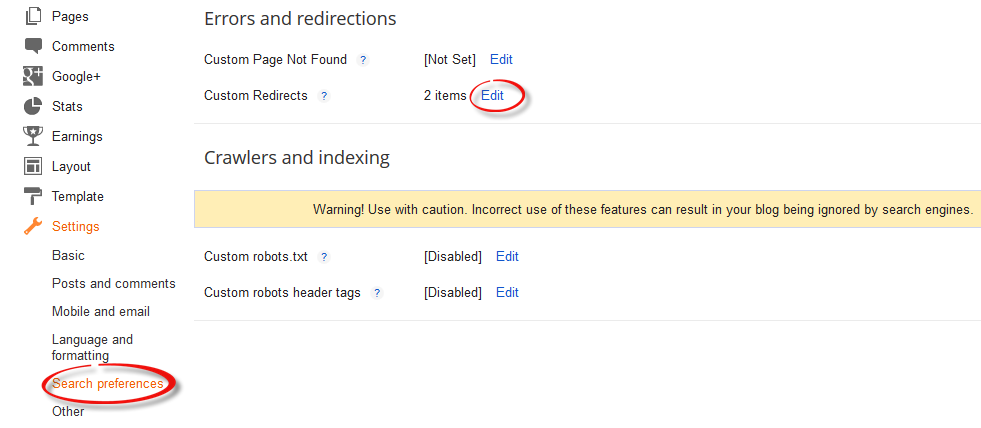
Step 2. Click on your blog > go to Settings \ Search Preferences and click "Edit" next to "Custom Redirects."

search preferences, custom redirects, 301, 302 redirect

Step 3. Enter the old URL in the "From" field, and the new URL in the "To" field including the forward slash "/" (see the screenshot below)

custom redirects, redirect old url to new url

Note: Do not enter the full URL in these fields. Just omit the address of your blog and type only the rest of the link. Again, this works only if you wish to redirect within your blogger blog and not to any external links.

Step 4. Click the "Save" link (1) and the "Save changes" button (2), and you're done!

blogger custom redirects
blogger custom redirect

If you want to redirect more pages, just click the "New redirect" button.

Senin, 12 Mei 2014

Responsive CSS Timeline with 3D Effect for Blogger

Here's another amazing way to display our Blogger posts. By applying the following Responsive CSS Timeline View with 3D Effect on Blogger Posts, we will have a responsive timeline-like structure of the most recent posts and their thumbnails, along with some cool CSS effects. When clicking on the associated radio input, the posts snippet/summary will expand by changing their style and size and will rotate in 3D. The main structure of this CSS timeline with 3D effect is an unordered list.

To get an idea of what it looks like, you can visit this demo blog.

responsive CSS timeline, customize blogger posts

How to Add Responsive CSS Timeline View to Blogger Posts

Step 1. Go to Blogger dashboard > Template > click on the Edit HTML button:

blogger template, edit html

Step 2. Click anywhere inside the code area and press the CTRL + F keys to open the search box:

blogger search box

Step 3. Type or paste the following tag inside the search box and hit Enter to find it:
</head>
Step 4. Just above the </head> tag, copy and paste the following style:
<b:if cond='data:blog.pageType != &quot;static_page&quot;'>
<b:if cond='data:blog.pageType != &quot;item&quot;'>
<style type='text/css'>
.post-body img, .post-body .tr-caption-container, .Profile img, .Image img,
.BlogList .item-thumbnail img {padding: 0px; border: 0px;}
.post-footer {display: none;}
.post {margin-bottom: 50px; padding-bottom: 0px; background: none; border: none;}
.jump-link a {display: none;}
  h3.post-title a {display: none;}
 .date-header {display: none;}
*,
.timeline:after,
.timeline:before {box-sizing: border-box;padding: 0; margin: 0;}
.timeline {position: relative;padding: 30px 0 50px 0;font-family: Arial, sans-serif;}
.timeline:before {content: &#39;&#39;;position: absolute;width: 5px;height: 100%;margin:0px;top: 0;left: 200px;background: url(data:image/png;base64,iVBORw0KGgoAAAANSUhEUgAAAAUAAAAFCAYAAACNbyblAAAAJUlEQVQIW2NkQAP/gYARWQwkAOLDBeECjEAAkkEWAKtEFwAJAgAZEBP+oM1IkwAAAABJRU5ErkJggg==);}
.event {position: relative;margin-bottom: 80px;padding-right: 40px;}
.thumb {position: absolute; width: 90px; height: 90px;box-shadow:
        0 0 0 8px #87939E,
        0 1px 1px rgba(255,255,255,0.5);background-repeat: no-repeat;border-radius: 50%;-webkit-transform: scale(0.8) translateX(24px);-moz-transform: scale(0.8) translateX(24px);-o-transform: scale(0.8) translateX(24px);-ms-transform: scale(0.8) translateX(24px);transform: scale(0.8) translateX(24px);}
.thumb:before {content: &#39;&#39;;background: transparent url(data:image/png;base64,iVBORw0KGgoAAAANSUhEUgAAAAoAAAAICAYAAADA+m62AAAAPElEQVQYV2NkQAP/gYARCNDFUQRgirAphitEl0TngxXisg5ZnBGXIpgbYfIYjkb3BNxGbBLYxIgyEaQRAA8KKAWYsZtjAAAAAElFTkSuQmCC);position: absolute;height: 8px; z-index: -1; width: 50px;top: 42px; left: 100%;margin-left: 8px;
}
.thumb span {color: #87939E;width: 100%;text-align: center;font-weight: 700;font-size: 15px;text-transform: uppercase;position: absolute;bottom: -30px;}
.event label,.event input[type=&quot;radio&quot;] {width: 24px;height: 24px;left: 158px;top: 36px;position: absolute;display: block;}
.event input[type=&quot;radio&quot;] {opacity: 0;z-index: 10;cursor: pointer;}
.event label:after{content: &quot;\2713&quot;;background: #8995A1;border-radius: 50%;color: #fff;font-size: 20px;height: 100%;width: 100%;font-weight: bold;left: -2px;top: -3px;line-height: 24px;position: absolute;text-align: center;}
.content-perspective { margin-left: 230px;position: relative;perspective: 600px;-webkit-perspective: 600px;-moz-perspective: 600px;-o-perspective: 600px;-ms-perspective: 600px;}
.content-perspective:before { content: &#39;&#39;; width: 34px; left: -44px; top: 48px;position: absolute;height: 1px; z-index: -2;background: #fff;}
.post-content {transform: rotateY(10deg);transform-origin: 0 0;transform-style: preserve-3d;}
.blog-post-body {position: relative;padding: 20px;color: #333; border-left: 5px solid #8995A1;box-shadow: 0 4px 6px rgba(0,0,0,0.1);background: #F9F9F9;}
.blog-post-body h3 {border: none;margin: 0px;}
.blog-post-body h3 a{font-size: 21px;padding: 5px 0 5px 0;color: #86919D;margin: 0px;text-decoration: none;border: none;}
.event input[type=&quot;radio&quot;]:checked ~ .content-perspective .blog-post-body h3 a{color: #F26328;}
.blog-post-body p,.thumb span,.event label {-webkit-backface-visibility: hidden;}
.blog-post-body p {font-size: 15px;max-height: 0px; overflow: hidden; color: rgba(0,0,0,0);text-align: left;}
.blog-post-body:before {content: &#39;\25c2&#39;;font-weight: normal; line-height: 86px; font-size: 86px;position: absolute;color: #8995A1; left: -41px;width: 100%;height: 100%; top: 3px;z-index: -1;}
.thumb,.thumb span,.blog-post-body h3 {transition: all 0.6s ease-in-out 0.2s;-webkit-transition: all 0.6s ease-in-out 0.2s;-moz-transition: all 0.6s ease-in-out 0.2s;-o-transition: all 0.6s ease-in-out 0.2s;-ms-transition: all 0.6s ease-in-out 0.2s;transition: all 0.6s ease-in-out 0.2s;}
.blog-post-body { transition: box-shadow 0.8s linear 0.2s;-webkit-transition: box-shadow 0.8s linear 0.2s;-moz-transition: box-shadow 0.8s linear 0.2s;-o-transition: box-shadow 0.8s linear  0.2s;-ms-transition: box-shadow 0.8s linear 0.2s;}
.post-content {transition: transform 0.8s cubic-bezier(.59,1.45,.69,.98) 0.2s;-webkit-transition: -webkit-transform 0.8s cubic-bezier(.59,1.45,.69,.98) 0.2s;-moz-transition: -moz-transform 0.8s cubic-bezier(.59,1.45,.69,.98) 0.2s;-o-transition: -o-transform 0.8s cubic-bezier(.59,1.45,.69,.98) 0.2s;-ms-transition: -ms-transform 0.8s cubic-bezier(.59,1.45,.69,.98) 0.2s;}
.blog-post-body p { transition: max-height 0.5s linear, color 0.3s linear;-webkit-transition: max-height 0.5s linear, color 0.3s linear;-moz-transition: max-height 0.5s linear, color 0.3s linear;-o-transition: max-height 0.5s linear, color 0.3s linear;-ms-transition: max-height 0.5s linear, color 0.3s linear;}
.event input[type=&quot;radio&quot;]:checked + label:after {content: &#39;\2714&#39;;color: #fff;background: #F26328;box-shadow: 0 0 0 5px rgba(255, 255, 255, 0.8);}
.event input[type=&quot;radio&quot;]:checked ~ .content-perspective:before {background: #F26328;}
 .event input[type=&quot;radio&quot;]:checked ~ .content-perspective .blog-post-body h3 { color: #F26328;}
.event input[type=&quot;radio&quot;]:checked ~ .content-perspective .post-content {transform: rotateY(-5deg);-webkit-transform: rotateY(-5deg);-moz-transform: rotateY(-5deg);-o-transform: rotateY(-5deg);-ms-transform: rotateY(-5deg);}
.event input[type=&quot;radio&quot;]:checked ~ .content-perspective .blog-post-body {border-color: #F26328;box-shadow: 10px 0px 10px -6px rgba(0, 0, 0, 0.1);}
.event input[type=&quot;radio&quot;]:checked ~ .content-perspective .blog-post-body p {max-height: 460px; color: rgba(0,0,0,0.6); transition-delay: 0s, 0.6s;-webkit-transition-delay: 0s, 0.6s;-moz-transition-delay: 0s, 0.6s;-o-transition-delay: 0s, 0.6s;-ms-transition-delay: 0s, 0.6s;}
.event input[type=&quot;radio&quot;]:checked ~ .content-perspective .blog-post-body:before {color: #F26328;}
.event input[type=&quot;radio&quot;]:checked ~ .thumb {transform: scale(1);box-shadow: 0 0 0 8px rgba(242,99,40,1), 0 1px 1px rgba(255,255,255,0.5); -webkit-transform: scale(1);-moz-transform: scale(1);-o-transform: scale(1);-ms-transform: scale(1);}
.event input[type=&quot;radio&quot;]:checked ~ .thumb span {color: #F26328;}
.event input[type=&quot;radio&quot;]:checked ~ .thumb:before {
background: transparent url(data:image/png;base64,iVBORw0KGgoAAAANSUhEUgAAAAoAAAAICAYAAADA+m62AAAAPUlEQVQYV2NkQAOfUjX+882+wYgujiIAU4RNMVwhuiQ6H6wQl3XI4oy4FMHcCJPHcDS6J2A2EqUQpJhohQBbNyaHFmzEqgAAAABJRU5ErkJggg==);}
@media screen and (max-width: 850px) {.blog-post-body h3 {font-size: 20px;}
 .blog-post-body p { font-size: 14px; text-align: justify; }
 .event input[type=&quot;radio&quot;]:checked ~ .content-perspective .blog-post-body p { max-height: 500px; }}
@media screen and (max-width: 540px) {.timeline:before { left: 50px;}
.event {padding-right: 0px; margin-bottom: 100px; }
 .thumb { transform: scale(0.8); -webkit-transform: scale(0.8);-moz-transform: scale(0.8);-o-transform: scale(0.8);-ms-transform: scale(0.8);}
 .event input[type=&quot;radio&quot;] { width: 100px;height: 100px;left: 0px;top: 0px; }
.thumb:before,.event input[type=&quot;radio&quot;]:checked ~ .thumb:before {background: none;width: 0;}
 .event label {display: none;}
 .content-perspective {margin-left: 0px;top: 80px;}
 .content-perspective:before {height: 0px; }
 .post-content { transform: rotateX(-10deg);-webkit-transform: rotateX(-10deg);-moz-transform: rotateX(-10deg);-o-transform: rotateX(-10deg);-ms-transform: rotateX(-10deg);}
 .event input[type=&quot;radio&quot;]:checked ~ .content-perspective .post-content { transform: rotateX(10deg);-webkit-transform: rotateX(10deg);-moz-transform: rotateX(10deg);-o-transform: rotateX(10deg);-ms-transform: rotateX(10deg);}
.blog-post-body {border-left: none;border-top: 5px solid #8995A1;}
.event input[type=&quot;radio&quot;]:checked ~ .content-perspective .blog-post-body {border-color: #F26328;box-shadow: 0 10px 10px -6px rgba(0, 0, 0, 0.1);}
.blog-post-body:before {content: &#39;\25b4&#39;;left: 33px; top: -32px;}
.event input[type=&quot;radio&quot;]:checked ~ .content-perspective .blog-post-body p {max-height:300px; }}
ul.timeline {list-style-type: none;}
</style>
</b:if>
</b:if>

Step 5. Search for the SECOND instance of this code below (hit Enter two times):
<data:post.body/>

Note: depending on the template you are using, you could find more lines like this one above. Therefore, if you don't see any changes after saving the template, try to replace the last one, as well.

Also, please note that if you are using the Read more function, you may need to remove it in order to make it work.

Step 6. After you found <data:post.body/> - replace it this code:
<b:if cond='data:blog.pageType != &quot;static_page&quot;'>
<b:if cond='data:blog.pageType != &quot;item&quot;'>
<ul class='timeline'><li class='event'><input checked='checked' name='tl-group' type='radio'/><label/>
<b:if cond='data:post.thumbnailUrl'><img class='thumb' expr:alt='data:post.title' expr:src='data:post.thumbnailUrl'/></b:if><div class='thumb'><b:if cond='data:post.dateHeader'><span><data:post.dateHeader/></span></b:if></div>
<div class='content-perspective'><div class='post-content'><div class='blog-post-body'><h3><b:if cond='data:post.link'><a expr:href='data:post.link'><data:post.title/></a><b:else/><b:if cond='data:post.url'><b:if cond='data:blog.url != data:post.url'><a expr:href='data:post.url'><data:post.title/></a><b:else/><data:post.title/></b:if><b:else/><data:post.title/></b:if></b:if></h3><p><b:if cond='data:blog.pageType != &quot;item&quot;'>
<b:if cond='data:blog.pageType != &quot;static_page&quot;'><data:post.snippet/></b:if></b:if></p></div></div></div></li></ul></b:if></b:if>
<b:if cond='data:blog.pageType == &quot;item&quot;'><data:post.body/></b:if>
<b:if cond='data:blog.pageType == &quot;static_page&quot;'><data:post.body/></b:if>
Step 7. Finally, click on the Save template button to save the changes.

Now, we will need to make some small adjustments in order to make the posts date appear correctly:
Go to Layout and click on the Edit link just below the Blog posts area. When the pop-up window appears, check the date option and choose to display the date in the following order (date/month/year):


Note that you can also hide the posts date by unchecking this option.
Finally, click on the Save button and that's it! View your blog and enjoy this Responsive Timeline view with 3D Effect on Blogger posts. If you need more help, please leave a comment below.

Credit: tympanus.net

Jumat, 02 Mei 2014

Display Blogger Posts in Grid View with Thumbnails

Grid View with Thumbnails is a script for self-hosted Blogger blogs which will display blog posts as a thumbnail grid of images in homepage and archive pages. Instead of sending your blog visitors to a page that displays all the posts in full length with a large image which takes up too much space and requires too much scrolling, now you could have a clean page that displays a gallery grid, with thumbnails and post titles, linking back to the source post for that thumbnail. Let's take a look at what it could look like in this demo blog.

grid view on blogger posts

If you have a wallpaper or photo blog that would benefit from displaying a thumbnail grid style layout, look no further. Here's how you can add Grid (gallery) View to Blogger posts.

Adding Grid (Gallery) View to Blogger Posts


Step 1. Log in to your Blogger account and go to Template > click on the Edit HTML button

blogger template html

Step 2. Click anywhere inside the code area and press the CTRL + F keys to open the search box


Step 3. Type </head> inside the search box and hit Enter to find it.

Step 4. Just above the </head> tag, add the following script and style:
<script src="http://code.jquery.com/jquery-1.9.1.js"></script>
<script src="http://code.jquery.com/jquery-migrate-1.1.0.js"></script>

<b:if cond='data:blog.pageType == &quot;index&quot;'>
<script type='text/javascript'>//<![CDATA[
$(document).ready(function() {

    var width = 200;
    var height = 170;
    var placeholder = 'https://blogger.googleusercontent.com/img/b/R29vZ2xl/AVvXsEiPJZrBjnLb6E8FNXyO-Vo8BaO0cwUL39s2qrOab3Em-hai68TbrfIKLIacu9bE8dej6b3x0hkhOAaq4zpep_KT1TlqdLDaAJVPAdpVUqUkrNdo3emOAlyO0GLsENY1yUKrJ_qLRWEix64/s1600/no-thumb.png';
    var margins = "0px 0px 10px 10px";
    var fitThumb = 1;
    var titleTopPadding = 5;
    var titleBottomPadding = 8;
    var titleLeftRightPadding = 5;

    var titlePadding = titleTopPadding + 'px ' + titleLeftRightPadding + 'px ' + titleBottomPadding + 'px ' + titleLeftRightPadding + 'px';
    $('.post-body').each(function(n, wrapper) {
        var wrapper = $(wrapper);
        var image = $(wrapper).find('img').first();
        var link = wrapper.parent().find('h3 a');
        var linkURL = link.attr('href');
        var linkTitle = link.text();

        $(link).remove();
        wrapper.empty();

        if (image.attr('src')) {
            var thumbHeight = image.attr('height');
            var thumbWidth = image.attr('width');
            var thumbParent = $(image).parent();

            wrapper.append(thumbParent);

            if (fitThumb) {
                image.attr({
                    src: image.attr('src').replace(/s\B\d{3,4}/, 's' + width + '-c')
                    });
                image.attr('width', width).attr('height', height);
            } else {
                image.attr({
                    src: image.attr('src').replace(/s\B\d{3,4}/, 's' + width)
                    });
                image.attr('width', width);
                var changeHeight = (thumbHeight / thumbWidth * width).toFixed(0);
                image.attr('height', changeHeight);
            }

        } else {
            var image = $('<img>').attr('src', placeholder).attr('height', height).attr('width', width);
            var thumbParent = $('<a>').append(image).appendTo(wrapper);
        }

        thumbParent.attr('href', linkURL).css('clear', 'none').css('margin-left', '0').css('margin-right', '0').addClass('postThumbnail');

        var thumbTitle = $('<div>').prepend(linkTitle).css('padding', titlePadding).css('opacity', '0.9').css('filter', 'alpha(opacity=0.9)').css('width', width).appendTo(thumbParent);
        var ptitleHeight = thumbTitle.height();
        var summary = parseInt(ptitleHeight) + parseInt(titleTopPadding) + parseInt(titleBottomPadding);
        thumbTitle.css('margin-top', '-' + summary + 'px');
        wrapper.css('float', 'left').css('height', height).css('width', width).css('margin', margins).css('overflow', 'hidden');
    });
    $('#blog-pager').css('clear', 'both');
});

function hideLightbox() {
    var images = document.getElementsByTagName('img');
    for (var i = 0; i < images.length;++i) {
        images[i].onmouseover = function() {
            var html = this.parentNode.innerHTML;
            this.parentNode.innerHTML = html;
            this.onmouseover = null;
        };
    }
}

if (window.addEventListener) {
    window.addEventListener('load', hideLightbox, undefined);
} else {
    window.attachEvent('onload', hideLightbox);
}
//]]>
</script>
<style>
.post {
    border-bottom: 0 dotted #E6E6E6;
    margin-bottom: 0;
    padding-bottom: 0;
}

h2,.post-footer {
    display: none;
}

a.postThumbnail div {
    text-decoration: none;
    color: #fff;
    font-size: 12px;
    font-weight: bold;
    text-transform: capitalize;
    background: rgb(125,126,125);
 /* Old browsers */
    background: -moz-linear-gradient(top,  rgba(125,126,125,1) 0%, rgba(14,14,14,1) 100%);
    background: -webkit-gradient(linear, left top, left bottom, color-stop(0%,rgba(125,126,125,1)), color-stop(100%,rgba(14,14,14,1)));
 /* Chrome,Safari4+ */
    background: -webkit-linear-gradient(top,  rgba(125,126,125,1) 0%,rgba(14,14,14,1) 100%);
    background: -o-linear-gradient(top,  rgba(125,126,125,1) 0%,rgba(14,14,14,1) 100%);
    background: -ms-linear-gradient(top,  rgba(125,126,125,1) 0%,rgba(14,14,14,1) 100%);
    background: linear-gradient(to bottom,  rgba(125,126,125,1) 0%,rgba(14,14,14,1) 100%);
    filter: progid:DXImageTransform.Microsoft.gradient( startColorstr=&#39;
    #7d7e7d&#39;, endColorstr=&#39;#0e0e0e&#39;,GradientType=0 );
}

a.postThumbnail:hover div {
    display: block;
}

.post-body img {
    background-color: transparent;
    border: 1px solid transparent;
    padding: 0px;
    -webkit-border-radius: 12px;
    -moz-border-radius: 12px;
    border-radius: 12px;
    opacity: 1;
    transition: opacity .25s ease-in-out;
    -moz-transition: opacity .25s ease-in-out;
    -webkit-transition: opacity .25s ease-in-out;
}

.post-body img:hover {
    -ms-filter: &quot;
    progid: DXImageTransform.Microsoft.Alpha(Opacity=70)&quot;
    ;

filter: alpha(opacity=70);
    -moz-opacity: 0.7;
    -khtml-opacity: 0.7;
    opacity: 0.7;
}
</style>
</b:if>
Note:
- If you want to make the post thumbnails larger, modify the 200 (width) and 170 (height) values in blue
- To change the default thumbnail for when there are no images, replace the URL in red with your own.

Step 5. Click on the Save template button to save the changes and View your blog. Now you should have a nice grid view on your Blogger posts. Enjoy!

Jumat, 07 Februari 2014

Advanced Random posts widget for Blogger with image thumbnails and snippets

When your blog has too many posts, visitors don't always have the time or desire to go through all the posts written there in order to make an idea of the blog's content. Thus, a random posts widget that will allow visitors to find content more easily could be really useful. This tutorial will show you how to add a random posts widget to display a list of posts in a random order with thumbnails and excerpts.

random posts widget for blogger


Adding Random Posts with Thumbnails and Posts Summary on Blogger

Step 1. Login to your blogger account, select your blog and go to Layout.

Step 2. Add new widget by clicking on the Add a gadget link and select Html/JavaScript from the popup window.
html javascript widget, blogger gadgets

Step 3. After adding the HTML/JavaScript you need to copy the following script and paste it in the Content box.
<style>
#random-posts img {
    border-radius: 10px;
    float: left;
    margin-right: 5px;
    width: 75px;
    height: 75px;
    background-color: #F5F5F5;
    padding: 3px;
    transition: all 0.2s linear 0s;
}

#random-posts img:hover {
    opacity: 0.6;
}

ul#random-posts {
    list-style-type: none;
    padding: 0px;
}

#random-posts a {
    font-size: 12px;
    text-transform: uppercase;
    padding: 0px auto 5px;
}

#random-posts a:hover {
    text-decoration: none;
}

.random-summary {
    font-size: 11px;
    background: none;
    padding: 5px;
    margin-right: 8px;
}

#random-posts li {
    margin-bottom: 10px;
    border-bottom: 1px solid #EEEEEE;
    padding: 4px;
}
</style>
<ul id='random-posts'>
<script type='text/javaScript'>
var randomposts_number = 5;
var randomposts_chars = 110;
var randomposts_details = 'yes';
var randomposts_comments = 'Comments';
var randomposts_commentsd = 'Comments Disabled';
var randomposts_current = [];
var total_randomposts = 0;
var randomposts_current = new Array(randomposts_number);

function randomposts(json) {
    total_randomposts = json.feed.openSearch$totalResults.$t
}
document.write('<script type=\"text/javascript\" src=\"/feeds/posts/default?alt=json-in-script&max-results=0&callback=randomposts\"><\/script>');

function getvalue() {
    for (var i = 0; i < randomposts_number; i++) {
        var found = false;
        var rndValue = get_random();
        for (var j = 0; j < randomposts_current.length; j++) {
            if (randomposts_current[j] == rndValue) {
                found = true;
                break
            }
        };
        if (found) {
            i--
        } else {
            randomposts_current[i] = rndValue
        }
    }
};

function get_random() {
    var ranNum = 1 + Math.round(Math.random() * (total_randomposts - 1));
    return ranNum
};
</script>
<script type='text/javaScript'>
function random_posts(json) {
    for (var i = 0; i < randomposts_number; i++) {
        var entry = json.feed.entry[i];
        var randompoststitle = entry.title.$t;
        if ('content' in entry) {
            var randompostsnippet = entry.content.$t
        } else {
            if ('summary' in entry) {
                var randompostsnippet = entry.summary.$t
            } else {
                var randompostsnippet = "";
            }
        };
        randompostsnippet = randompostsnippet.replace(/<[^>]*>/g, "");
        if (randompostsnippet.length < randomposts_chars) {
            var randomposts_snippet = randompostsnippet
        } else {
            randompostsnippet = randompostsnippet.substring(0, randomposts_chars);
            var whitespace = randompostsnippet.lastIndexOf(" ");
            randomposts_snippet = randompostsnippet.substring(0, whitespace) + "&#133;";
        };
        for (var j = 0; j < entry.link.length; j++) {
            if ('thr$total' in entry) {
                var randomposts_commentsnum = entry.thr$total.$t + ' ' + randomposts_comments
            } else {
                randomposts_commentsnum = randomposts_commentsd
            }; if (entry.link[j].rel == 'alternate') {
                var randompostsurl = entry.link[j].href;
                var randomposts_date = entry.published.$t;
                if ('media$thumbnail' in entry) {
                    var randompoststhumb = entry.media$thumbnail.url
                } else {
                    randompoststhumb = "https://blogger.googleusercontent.com/img/b/R29vZ2xl/AVvXsEhvhh116kN7LJ-5c-87cWvWK_ExF3NVrORQiUmAjLje3WYCndq3RKzj7hYp9YrZ-jVicfKCFh9lIam4AMbpuJSR39VqO_XmecoMCjhlDcitJ7VVxlBvRJDd3LWJNjHJPLqBSyfSaAfCX-w/s1600/no_thumb.png"
                }
            }
        };
        document.write('<li>');
        document.write('<a href="' + randompostsurl + '" rel="nofollow"><img alt="' + randompoststitle + '" src="' + randompoststhumb + '"/></a>');
        document.write('<div><a href="' + randompostsurl + '" rel="nofollow">' + randompoststitle + '</a></div>');
        if (randomposts_details == 'yes') {
            document.write('<span><div  class="random-info">' + randomposts_date.substring(8, 10) + '.' + randomposts_date.substring(5, 7) + '.' + randomposts_date.substring(0, 4) + ' - ' + randomposts_commentsnum) + '</div></span>'
        };
        document.write('<br/><div class="random-summary">' + randomposts_snippet + '</div><div style="clear:both"></div></li>')
    }
};
getvalue();
for (var i = 0; i < randomposts_number; i++) {
    document.write('<script type=\"text/javascript\" src=\"/feeds/posts/default?alt=json-in-script&start-index=' + randomposts_current[i] + '&max-results=1&callback=random_posts\"><\/script>')
};
</script>
</ul>

Random Posts Options

- Thumbnail dimensions: to change the size of the thumbnails in pixels, replace the 75px value.
- Summary length: you can control the the length of the summary (in characters) by changing the 110 value from var randomposts_chars=110;
- Post info: if you want to hide the post date and comment count change 'yes' from var randomposts_details='yes'; to 'no';
- Font Size for Posts Titles and Summary: to modify the font size for the post snippet modify the 11px value and for the posts title, the 12px value;

Click on the Save button and View your blog. The sidebar will display a random posts widget on each of your blog pages.

Kamis, 02 Januari 2014

How to Create Magazine Style with Post Summaries and Thumbnails on Blogger

The magazine or newspaper style templates are those that display the posts summaries in the homepage by stacking the columns on top of each other. This kind of templates is very popular nowadays, and whether it is a news or technology blog, everyone needs a fresh magazine style layout for their blogs.

blogger tricks, blogger widgets, blogger templates
There are several ways to make posts appear this way. An option would be to use the Read more script to display a summary of the posts and add a conditional tag and a different style to the first post so that it will have a larger width than the older posts. So, this tutorial will show you how to create a magazine style for a Blogger Template. By following this tutorial, you can transform your boring and simple Blogger template to have an attractive and stylish magazine style layout.

To see how it looks like, please visit this demo blog.

Adding the Magazine/Newspaper style to a Blogger Template

Step 1. Before anything please make a backup of your current template to make sure that you won't lose anything important - just log in on your Blogger Dashboard and go to Template, then click on the Backup/Restore button. After you've got a copy of the xml template, click on the Edit HTML button:

blogger edit html template

Step 2. Click anywhere inside the code area and search by using CTRL + F keys for this line:
<data:post.body/>
Note: You'll find it more than once, but stop to the second one in order to see the changes.

Step 3. Remove that line and instead it add this code:
<b:if cond='data:blog.pageType != &quot;item&quot;'>
<b:if cond='data:blog.pageType != &quot;static_page&quot;'>
 <span class='post-comment-link'><b:if cond='data:blog.pageType != &quot;item&quot;'><b:if cond='data:post.allowComments'><a class='comment-link' expr:href='data:post.addCommentUrl' expr:onclick='data:post.addCommentOnclick'><data:post.numComments/></a></b:if></b:if></span>
<div expr:id='&quot;summary&quot; + data:post.id'><data:post.body/></div>
  <script type='text/javascript'>createSummaryAndThumb(&quot;summary<data:post.id/>&quot;);</script>
<span class='readmorebutton' style='float:right'><a expr:href='data:post.url'>Read More &#187;</a></span></b:if></b:if>
<b:if cond='data:blog.pageType == &quot;item&quot;'><data:post.body/></b:if>
<b:if cond='data:blog.pageType == &quot;static_page&quot;'><data:post.body/></b:if>
Note: you can replace the Read More text, by changing the code in red

Step 4. Now find (CTRL + F) this line:
<b:include data='post' name='post'/>
Step 5. Remove this as well and instead of it add this:
<b:if cond='data:post.isFirstPost'>
<b:if cond='data:blog.homepageUrl == data:blog.url'>
<div id='first'>
<b:if cond='data:post.title'>
<h3 class='post-title entry-title'>
<b:if cond='data:post.link'>
<a expr:href='data:post.link'><data:post.title/></a>
<b:else/>
<b:if cond='data:post.url'>
<a expr:href='data:post.url'><data:post.title/></a>
<b:else/>
<data:post.title/>
</b:if>
</b:if>
</h3>
</b:if>
<div class='first-body'>

<b:if cond='data:blog.pageType != &quot;item&quot;'>
<b:if cond='data:blog.pageType != &quot;static_page&quot;'>
<div expr:id='&quot;summary1&quot; + data:post.id'><data:post.body/></div>
  <script type='text/javascript'>createSummaryAndThumb1(&quot;summary1<data:post.id/>&quot;);</script>
<span class='post-comment-link'><b:if cond='data:blog.pageType != &quot;item&quot;'><b:if cond='data:post.allowComments'><a class='comment-link' expr:href='data:post.addCommentUrl' expr:onclick='data:post.addCommentOnclick'><data:post.numComments/></a></b:if></b:if></span>
<span class='readmorebutton' style='float:right'><a expr:href='data:post.url'>Read More &#187;</a></span>
</b:if></b:if>
<b:if cond='data:blog.pageType == &quot;item&quot;'><data:post.body/></b:if>
<b:if cond='data:blog.pageType == &quot;static_page&quot;'><data:post.body/></b:if>

</div>
</div>
<b:else/>
<b:include data='post' name='post'/>
</b:if>
<b:else/>
<b:include data='post' name='post'/>
</b:if>
Note: you can change the Read More text here also, just replace the code in red with the text that you want to show.

Step 6. Now find the </head> tag and paste the following script before/above it:
 <script type='text/javascript'>
posts_no_thumb_sum = 290;
posts_thumb_sum = 240;
img_thumb_height = 80;
img_thumb_width = 80;
first_no_thumb_sum = 580;
first_thumb_sum = 450;
img_thumb_height1 = 145;
img_thumb_width1 = 165;

</script>

<script type='text/javascript'>
//<![CDATA[
function removeHtmlTag(strx,chop){
if(strx.indexOf("<")!=-1)
{
var s = strx.split("<");
for(var i=0;i<s.length;i++){
if(s[i].indexOf(">")!=-1){
s[i] = s[i].substring(s[i].indexOf(">")+1,s[i].length);
}
}
strx = s.join("");
}
chop = (chop < strx.length-1) ? chop : strx.length-2;
while(strx.charAt(chop-1)!=' ' && strx.indexOf(' ',chop)!=-1) chop++;
strx = strx.substring(0,chop-1);
return strx+'...';
}

function createSummaryAndThumb(pID){
var div = document.getElementById(pID);
var imgtag = "";
var img = div.getElementsByTagName("img");
var summ = posts_no_thumb_sum;
if(img.length>=1) {
imgtag = '<span class="posts-thumb" style="float:left;"><img src="'+img[0].src+'" width="'+img_thumb_width+'px" height="'+img_thumb_height+'px"/></span>';
summ = posts_thumb_sum;
}

  var summary = imgtag + '<div class="summary">' + removeHtmlTag(div.innerHTML,summ) + '</div>';
div.innerHTML = summary;
}

function createSummaryAndThumb1(pID){
var div = document.getElementById(pID);
var imgtag = "";
var img = div.getElementsByTagName("img");
var summ = first_no_thumb_sum;
if(img.length>=1) {
imgtag = '<span class="first-post-thumb" style="float:left;"><img src="'+img[0].src+'" width="'+img_thumb_width1+'px" height="'+img_thumb_height1+'px"/></span>';
summ = first_thumb_sum;
}

var summary1 = imgtag + '<div class="summary">' + removeHtmlTag(div.innerHTML,summ) + '</div>';
div.innerHTML = summary1;
}

//]]>
</script>
Step 7. And below the script above add these CSS styles:
<b:if cond='data:blog.pageType != &quot;static_page&quot;'>
<b:if cond='data:blog.pageType != &quot;item&quot;'>
<style type='text/css'>
.first-post-thumb {
    margin-right: 10px;
}

.summary {
    height: 100%;
}

#first { /* Styles for the First Post Container */
    width: auto;
    height: 250px;
    float: left;
    margin-bottom: 10px;
    background-color: #F4F4F4; /* background color for the first post */
    border: 1px solid #E5E5E5; /* border for the first post */}

.first-body { /* Style for the First Post summary */
    color: #545454;
    font-size: 13px;
    text-align: justify;
    padding: 5px 10px;
    line-height: 1.5em;
}

#first h3 a, #first h3 a:visited { /* Style for the First Post Title*/
    border-bottom: 2px solid #DFDFDF;
    color: #515151;
    font-size: 20px;
    display: block;
    margin: 10px auto;
    width: 95%;
    font-size: 20px;
    padding: 0px 0px 4px 0px;
    font-weight: bold;
    text-align: left;
    line-height: 1.4em;
    background: none;
}

#first h3 a:hover { /* Color on mouseover for the First Post Title */
    color: #1061A1;
}

.post { /* Styles for the small posts container */
    float: left;
    margin: 0px 6px 2% 5px;
    width: 46%;
    height: 230px;
    padding: 0px 5px 5px 5px;
    background: #FCFCFC; /* background color for the small posts */
    border: 1px solid #E5E5E5; /* border for the small posts */
    overflow: hidden;
}

.posts-thumb { /* Style for the small posts thumbnails */
    margin-right: 10px;
}

.post-body img, .post-body .tr-caption-container, .Profile img, .Image img, .BlogList .item-thumbnail img {
    background: none;
    border: none;
    box-shadow: none;
    padding: 0;
}


h3.post-title a{ /* Style for the small posts titles */
    font-size: 14px;
    color: #747474;
    text-transform: uppercase;
}

h2.date-header { /* Hide the post date */
    display: none;
}

.post-footer {
    display: none;
}

h3.post-title {
    margin: 0px;
}

.readmorebutton {
    margin-top: 5px;
}

.readmorebutton a { /* Styles for the Read More link */
    color: #767676;
    border: 1px solid #E1E1E1;
    background: #EAEAEA; /* Background color for the Read More link */
    text-decoration: none;
    padding: 3px 5px;
    font-weight: bold;
    font-size: 11px;
    float: right;
    position: relative;
}

.post-comment-link { /* Style for the comment bubble of posts below */
    position: absolute;
    top: -35px;
    right: -10px;
    display: block;
    border: 1px solid #E1E1E1; /* border for the comment bubble */
    background: #EAEAEA; /* background color for the comment bubble */
    font-size: 11px;
    position: absolute;
}

#first .post-comment-link { /* Style for the comment bubble of first post */
    position: absolute;
    top: 10px;
    right: 0px;
}

.post-comment-link a { /* Link color for the comments bubble*/
    padding: 10px;
    color: #6A6A6A;
    text-decoration: none;
    font-weight: bold;
}

#blog-pager {
    clear: both;
}
</style>
</b:if>
</b:if>
Customization:

1) At the beginning of the script from step 6, we have this section:
posts_no_thumb_sum = 290;
posts_thumb_sum = 240;
img_thumb_height = 80;
img_thumb_width = 80;
first_no_thumb_sum = 580;
first_thumb_sum = 450;
img_thumb_height1 = 145;
img_thumb_width1 = 165;
- the first number is the number of characters that will show for the small posts when there will be no image available
- the 2nd number is the number of characters that will show when the small posts will have an image
- the 3rd and the 4th line is for the height and width of the small posts thumbnails (images).
- the same goes for what is in blue, but this configuration affects only the first post. Since the first post is wider, it may contain a larger number of characters and we'll be able to make the thumbnail size larger.

2) And finally, we have the CSS styles. That last thing we added is a code that determines how the posts are going to look on the homepage (and archive pages as well, except for the first post).

To change the width an height, respectively the size for the first post container, look for these lines:
width: auto;
height: 250px;
Underneath the first post are the values for the other posts, just look for this part:
width: 46%;
height: 230px;
The width will ocuppy 46% of the main column width and height is set to 230px. Here you may need to experiment a bit with the sizes in order to make them appear correctly.

Finally, set the number of posts to show on the homepage, so that there won't be any empty space. Go to Settings >> Posts and comments >> Show at most and select the number of posts that you want to appear.